Stellaris Launchpad PWM Tutorial
After receiving my Stellaris Launchpad, I decided to browse the little amount of tutorials there was available on the subject. I was really impressed by the Getting Started hands-on workshop offered in TI’s wiki. After watching the first few tutorials, I had a somewhat firmer grasp on how this little puppy was supposed to be programmed, and the capabilities of the Code Composer Studio IDE.
I got as far as Chapter 4: Interrupts until I hit the first snag: After the Lab4 assignment, the friendly instructor told that as a home assignment, one could try out the PWM (pulse-width modulation) capabilities of the Launchpad before proceeding further. Little did I know how many hours I would spend on that topic! After a solid 8 hours of banging my head against the documentation, Launchpad and CCS (which is prone to hanging at least on my PC), I finally got it working, and decided this would be a great place for a tutorial.
Rule 1 of PWM on Launchpad: There are no PWM units
The initial four hours of my PWM efforts were spent on the StellarisWare Driverlib documentation concerning PWM. In case you haven’t yet watched the tutorials, the Driverlib is essentially a bundle of code that takes away the burden of writing into dozens of control registers, and instead presents the programmer with a couple of hundred API calls to enable a higher-level approach.
It wasn’t until the third hour of googling around that I discovered, that while the timer functionality of the Launchpad includes a PWM mode, there are no actual PWM units on board! So if you’re looking at the PWM functions in Chapter 21 of Stellaris Peripheral Driver Library User’s Guide – stop it and get back to the Chapter 27: Timer functions.
Step 1: Setting up the timer0 PWM mode
So the only PWM functionality the Launchpad supports is the “PWM mode” of the six hardware timers. Thankfully, that’s already quite nice (if I ever find out how to use interrupts with PWM, even better). So unless you already know how the timer system works, now’s a good time to watch the Chapter 4 video which explains it quite nicely. Based on that tutorial, we learn that the following piece of code should initialize the timer for us:
SysCtlPeripheralEnable(SYSCTL_PERIPH_TIMER0);
TimerConfigure(TIMER0_BASE, TIMER_CFG_PERIODIC);

ulPeriod = (SysCtlClockGet() / 10) / 2;
TimerLoadSet(TIMER0_BASE, TIMER_A, ulPeriod - 1);

TimerEnable(TIMER0_BASE, TIMER_A);
I removed the interrupt enabling part of code as we don’t need that. Also, the TIMER_CFG_32_BIT_PER constant was deprecated, so TIMER_CFG_PERIODIC is used instead.
In order to use the PWM mode, we only need to change the TIMER_CFG_PERIODIC to PWM (also requires setting the timer to split mode so there’s two 16-bit timers instead of one 32-bit one), and specify a match value which defines the duty cycle of our PWM:
SysCtlPeripheralEnable(SYSCTL_PERIPH_TIMER0);
TimerConfigure(TIMER0_BASE, TIMER_CFG_SPLIT_PAIR|TIMER_CFG_A_PWM);

ulPeriod = 1000; // with a 16-bit timer, maximum is 65535
dutyCycle = 250; // 75 % duty cycle (0.25 * ulPeriod)

TimerLoadSet(TIMER0_BASE, TIMER_A, ulPeriod - 1);
TimerMatchSet(TIMER0_BASE, TIMER_A, dutyCycle);
TimerEnable(TIMER0_BASE, TIMER_A);
In normal operation, counter counts down from “load value” and PWM signal stays high until the counter reaches “match value”, at which point PWM signal goes down and stays there until timer reaches zero, at which point the counter is reset to “load value”, PWM signal goes back up, and downcount continues. In the above example, timer counts down from 1000 and PWM goes low when it reaches 250 (i.e. after 750 cycles), and then stays low for 250 cycles, after which counter resets to 1000 and PWM goes up again.
Step 0: Enabling Timer 0 Capture Compare PWM pins (CCP)
Now comes the tricky part. After enabling PWM mode and checking with scope, it’s easily verified that no pin on the Stellaris Launchpad is toggling at any rate, against any possible assumptions that might suggest otherwise. The reason for this is that the ARM core has the capability to use its pins for multiple purposes, and we need to specifically request that the Timer 0 CCP functionality is enabled.
From the LM4F120H5QR datasheet, page 658, chapter 11-1, Table 11-1 we discover that Timer 0 subtimer A is connected to CCP pin called “T0CCP0”. From the next page and Table 11-2 we discover that this pin can be assigned to PB6 or PF0. Several registers need to be set for this to happen, but thankfully the Driverlib also has a nice function for this – it only requires about three hours of googling around to find the magic incantations. What you need to do is:
- Define the constant
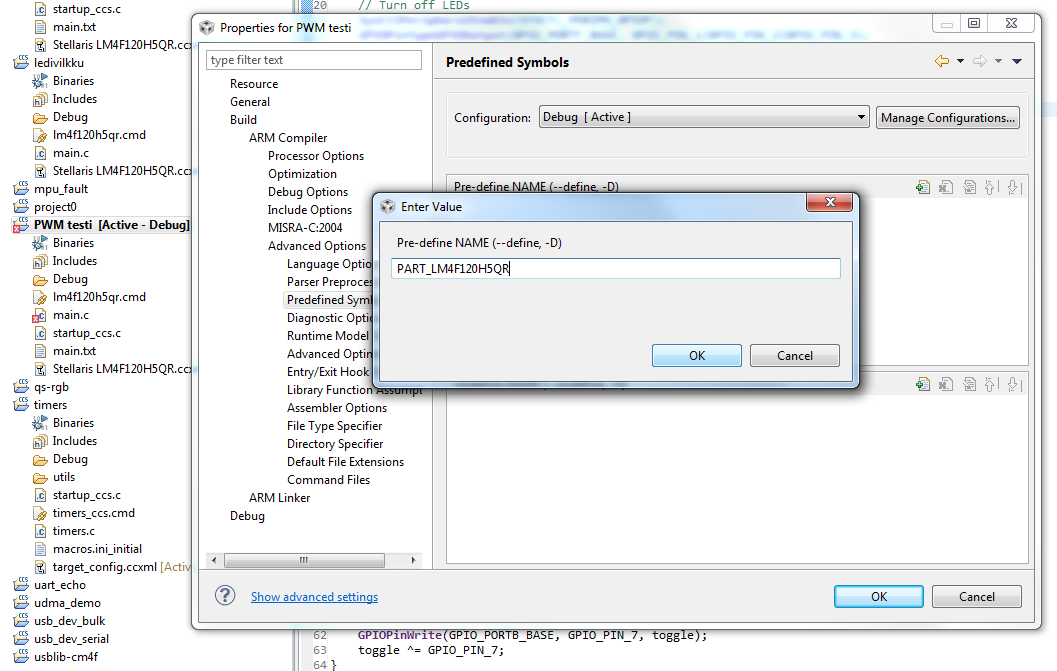
PART_LM4F120H5QR - include
driverlib/pin_map.h
(now we have GPIO_PB6_T0CCP0 defined)
- Use
SysCtlPeripheralEnable()to enable Port B - Call
GPIOPinConfigure(GPIO_PB6_T0CCP0);to mux T0CCP0 to PB6 - Call
GPIOPinTypeTimer(GPIO_PORTB_BASE, GPIO_PIN_6);to set up the pin
Pretty easy, wasn’t it? No, it wasn’t. And I can tell you that there is very scarce information yet available on this matter. And TI’s documentation on timer PWM modes with Driverlib is totally nonexistent, so it took me full three hours of trying to get all the details done. Thanks to Bakr Younis at TI forums for the final tips.
Oh, and to define the constant, you may want to go to project properties (I assume everyone is capable of creating an empty project already in CCS), and select Build / Advanced Options / Predefined Symbols / Add Pre-define NAME and type “PART_LM4F120H5QR” into the dialog. An example of how it should look like is given on the right.
Wrapping it all together
All right! We have everything more or less in place. The full source code becomes:
#include "inc/hw_types.h"
#include "inc/hw_memmap.h"

#include "driverlib/sysctl.h"
#include "driverlib/gpio.h"
#include "driverlib/timer.h"
#include "driverlib/pin_map.h"

int main(void) {
    unsigned long ulPeriod, dutyCycle;

    // 40 MHz system clock
    SysCtlClockSet(SYSCTL_SYSDIV_5|SYSCTL_USE_PLL|
        SYSCTL_XTAL_16MHZ|SYSCTL_OSC_MAIN);

    ulPeriod = 1000;
    dutyCycle = 250;

    // Turn off LEDs
    SysCtlPeripheralEnable(SYSCTL_PERIPH_GPIOF);
    GPIOPinTypeGPIOOutput(GPIO_PORTF_BASE, GPIO_PIN_1|GPIO_PIN_2|GPIO_PIN_3);
    GPIOPinWrite(GPIO_PORTF_BASE, GPIO_PIN_1|GPIO_PIN_2|GPIO_PIN_3, 0);

    // Configure PB6 as T0CCP0
    SysCtlPeripheralEnable(SYSCTL_PERIPH_GPIOB);
    GPIOPinConfigure(GPIO_PB6_T0CCP0);
    GPIOPinTypeTimer(GPIO_PORTB_BASE, GPIO_PIN_6);

    // Configure timer
    SysCtlPeripheralEnable(SYSCTL_PERIPH_TIMER0);
    TimerConfigure(TIMER0_BASE, TIMER_CFG_SPLIT_PAIR|TIMER_CFG_A_PWM);
    TimerLoadSet(TIMER0_BASE, TIMER_A, ulPeriod -1);
    TimerMatchSet(TIMER0_BASE, TIMER_A, dutyCycle); // PWM
    TimerEnable(TIMER0_BASE, TIMER_A);

    while(1) { // The following code varies the duty cycle over time
        TimerMatchSet(TIMER0_BASE, TIMER_A, dutyCycle++);

        if(dutyCycle >= ulPeriod - 1)
            dutyCycle = 0;

        SysCtlDelay(50000);
    }
}
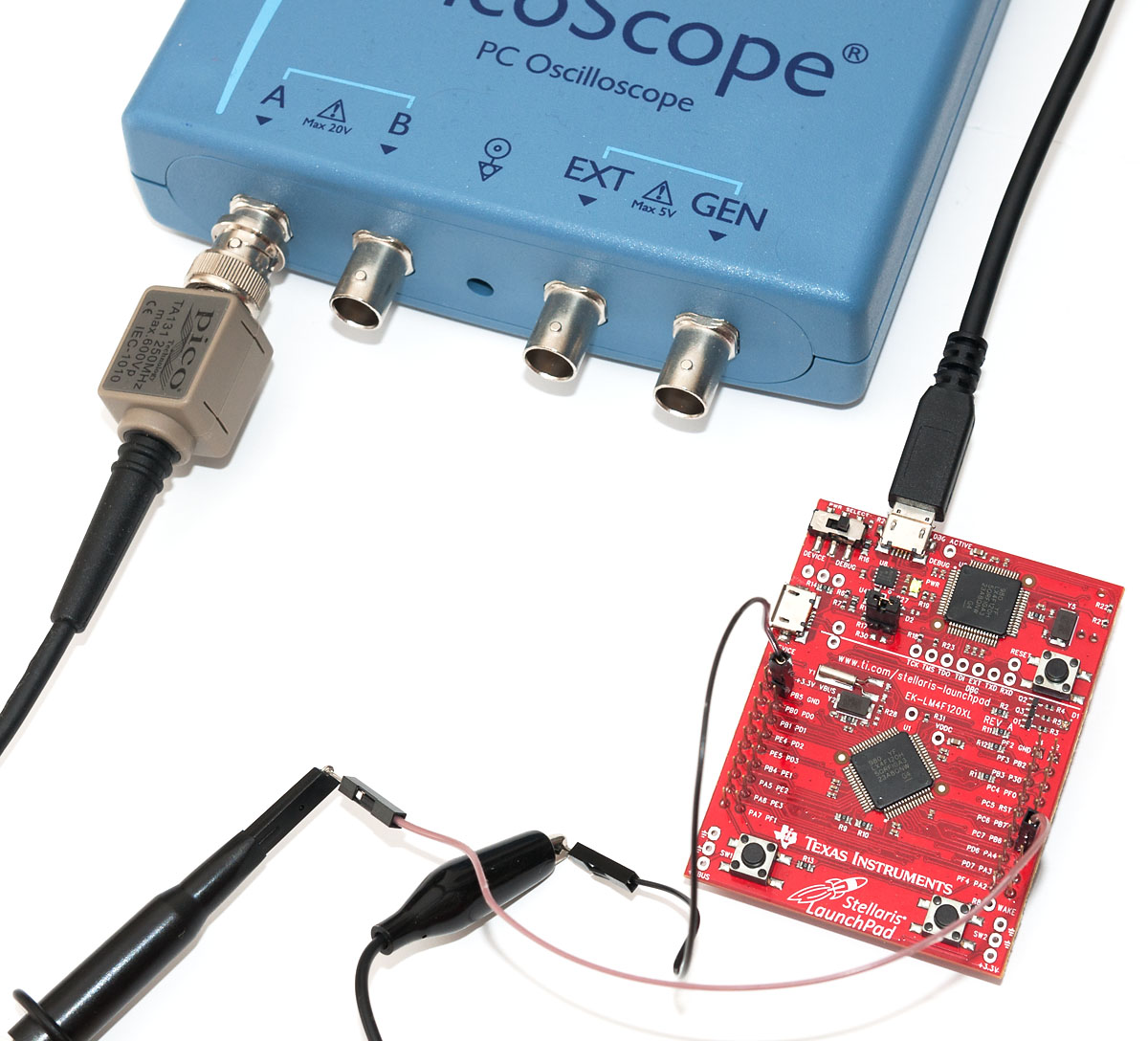
After wiring the Launchpad to my trusty old (you can see the dust in the post title image if you click it full size :) Picoscope, it’s easy to verify the code actually works:
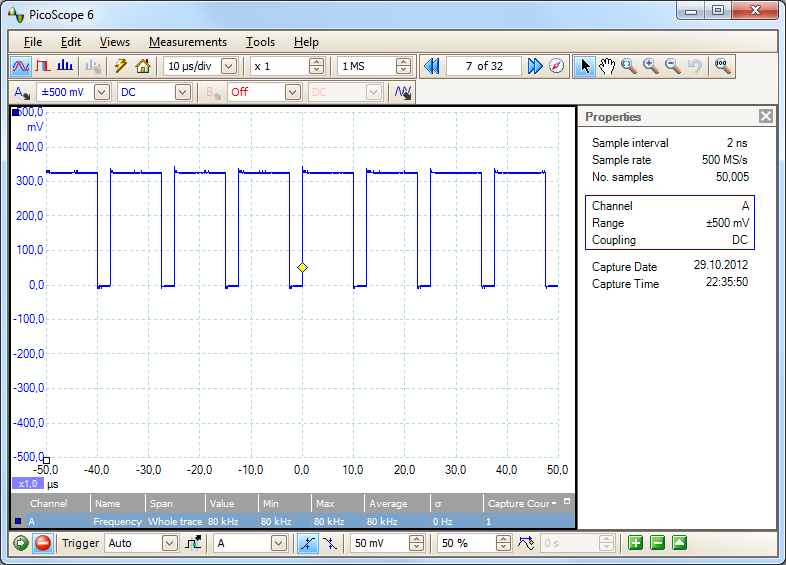
That’s it! Based on this tutorial, it should be quite easy to set up more PWM signals, or once you realize that the Launchpad LEDs are located in PF1-3 that in turn can be controlled by T0CCP1, T1CCP0, and T1CCP1, you can also set up all kinds of cool color displays like in the Stellaris Launchpad demo program.
Oh, and if someone is able to figure out how in the hell am I supposed to set up timer-based PWM interrupts so I can get interrupted on both timer reset and match and figure out which one, please let me know. Based on some “quick” (one hour down the drain) tests, the PWM functionality stops working once timer interrupts get set up. You’d think it would be rather straightforward using Driverlib, but in that case you’d think wrong.