This is the third part of my USB tutorial for ATtiny2313 and V-USB library. In the second part we got the breadboard setup more or less covered, and now is the time for actual code! This will most likely be the longest of the three parts, so let’s get started.
Adding V-USB as a part of your project
First, we will download the latest version V-USB library from OBdev. Head to the Downloads-section and get the latest .zip – I got vusb-20120109.zip.
Unzip the archive and copy the usbdrv subfolder to your project folder (the whole folder, not just contents). Go to the subfolder and make a copy of usbconfig-prototype.h with the name usbconfig.h. Locate the #define lines for IO port and port bits and clock rate, and update them as necessary to reflect our configuration where D+ is in PD2 and D- in PD3 and clock rate is 12 MHz:
#define USB_CFG_IOPORTNAME D #define USB_CFG_DMINUS_BIT 3 #define USB_CFG_DPLUS_BIT 2 #define USB_CFG_CLOCK_KHZ 12000
It’s also a good idea to ensure that V-USB tells the computer that it is powered via USB (i.e. not self powered) and takes maximum of 50 mA of power (defaults in my version is USB power, 100 mA max.):
#define USB_CFG_IS_SELF_POWERED 0 #define USB_CFG_MAX_BUS_POWER 50
We will be using OBdev’s licenced vendor and device IDs, so they don’t need to be changed (note that this also means my tutorial will fall under GPL, including the schematic in part 2). But we do want to customize the vendor name and device name (note the backward slash in vendor name string used to split the #define to two lines so it fits into this blog post):
#define USB_CFG_VENDOR_ID 0xc0, 0x16 /* = 0x16c0 */
#define USB_CFG_DEVICE_ID 0xdc, 0x05 /* = 0x05dc */
#define USB_CFG_DEVICE_VERSION 0x00, 0x01
#define USB_CFG_VENDOR_NAME 'c', 'o', 'd', 'e', 'a', 'n', 'd', 'l', \
'i', 'f', 'e', '.', 'c', 'o', 'm'
#define USB_CFG_VENDOR_NAME_LEN 15
#define USB_CFG_DEVICE_NAME 'U', 'S', 'B', 'e', 'x', 'a', 'm', 'p', 'l', 'e'
#define USB_CFG_DEVICE_NAME_LEN 10
The usbconfig.h header file is well documented so you may want to read the rest of the options to get an idea what the library can can do. Now the only thing missing is the actual C file to use the library. Here is the barebones version of main.c we’ll start with:
#include <avr/io.h>
#include <avr/interrupt.h>
#include <avr/wdt.h>
#include "usbdrv.h"
#define F_CPU 12000000L
#include <util/delay.h>
USB_PUBLIC uchar usbFunctionSetup(uchar data[8]) {
return 0; // do nothing for now
}
int main() {
uchar i;
wdt_enable(WDTO_1S); // enable 1s watchdog timer
usbInit();
usbDeviceDisconnect(); // enforce re-enumeration
for(i = 0; i<250; i++) { // wait 500 ms
wdt_reset(); // keep the watchdog happy
_delay_ms(2);
}
usbDeviceConnect();
sei(); // Enable interrupts after re-enumeration
while(1) {
wdt_reset(); // keep the watchdog happy
usbPoll();
}
return 0;
}
The code should be pretty straightforward to understand:
- Include the
usbdrv.hto access V-USB functions - Implement
usbFunctionSetup()to handle USB requests (we’ll do that soon) - In the main function, set up a 1 second watchdog timer that resets the microcontroller if 1000 milliseconds pass without a call to
wdt_reset() - Call
usbInit()to initialize the V-USB library - Enforce USB device re-enumeration using
usbDeviceDisconnect(), a 500 ms delay (while calling the watchdog reset every 2 ms) andusbDeviceConnect() - Enable interrupts
- Loop forever while calling the watchdog reset and
usbPoll()
The reason we are using the watchdog timer is, that our code might for some reason freeze (for example, corrupt data is read and a bug or eternal loop occurs) and the USB device would then stop responding. In this case, the wdt_reset() gets no longer called and after 1 second, the watchdog timer automatically resets our ATtiny, and the program execution starts again (like you’d just resetted the circuit yourself). While this is not absolutely necessary, it is a good practice and saves the user from unplugging and replugging the device if something strange happens.
Another thing you may wonder is why the disconnect/delay/connect -procedure is needed at all. This is because the host PC can remember the identifier assigned to a USB device even if our device resets and forgets that identifier. By enforcing re-enumeration we make sure that both the host PC and our device have the same ID used to communicate over the USB bus.
Now let’s see if we can get it all to compile. The easiest way is to use my ready-made Makefile which also contains the necessary statements for our PC side command-line client. Put the makefile to your project folder and run make main.hex too see if it works. This way, you also see the actual commands the Makefile is used to run – there is nothing special with V-USB, the main things you need to remember is to have -Iusbdrv in place for the compiler to find the .h files from usbdrv folder, and then just having the three additional object files (usbdrv.o, oddebug.o, usbdrvasm.o) put into the same .elf file along with main.o.
Responding to USB control messages
Before we head to PC side code, let’s make our device firmware respond to two basic commands sent via USB: Turning a LED on and off. USB communication is initiated from host side and so-called control messages are sent to make USB device return it’s name or any other desired function. The specification also has room for vendor-specific control messages. Let’s define two such messages:
#define USB_LED_OFF 0 #define USB_LED_ON 1
Now V-USB library automatically calls our usbFunctionSetup() method when it receives a vendor-specific control message. The parameter is a 8-byte buffer actually containing a structure called usbRequest_t that is defined in usbdrv.h. I suggest you to check that definition out. At this point we are interested in the bRequest property that will either be 0 (USB_LED_OFF) or 1 (USB_LED_ON) – we will shortly see how our command-line client on PC side will generate these control requests, so there is nothing magical happening here – we just send a request from PC side and interpret it on the other side. Here’s the modified function to turn the LED on or off:
// this gets called when custom control message is received
USB_PUBLIC uchar usbFunctionSetup(uchar data[8]) {
usbRequest_t *rq = (void *)data; // cast data to correct type
switch(rq->bRequest) { // custom command is in the bRequest field
case USB_LED_ON:
PORTB |= 1; // turn LED on
return 0;
case USB_LED_OFF:
PORTB &= ~1; // turn LED off
return 0;
}
return 0; // should not get here
}
Of course for this to work we need to set PB0 as output in the beginning of main() (I suggest just after the “uchar i;” line):
DDRB = 1; // PB0 as output
Now we’re ready to deploy our code to the chip. Just call make flash and the dependencies should take care of recompiling the main code file automatically.
Windows driver hell
Now if you are doing this project on a Linux box, congratulations, you likely can just get LibUSB and compile the command-line client to talk to your new device. On Windows, however, you will need a custom device driver. Especially nasty was the fact that older example projects on V-USB site don’t work with 64-bit Windows 7 at all. For this reason, I’ll outline the basic steps for creating and installing your own driver.
Now immediately after you have flashed the ATtiny you should hear the standard Windows fanfare di-dum sound that tells a new USB device has been plugged in. Windows will look for a driver and most likely fail. This is where libusb-win32 comes to the rescue:
- Go to the libusb-win32 home page (google if it the above link doesn’t work)
- Locate the heading “Device driver installation” and follow the instructions to download the latest version. I used libusb-win32-bin-1.2.6.0.zip. Unzip to a subfolder called “libusb” in the project folder.
- Run the INF-wizard using the instructions, put the installer somewhere you like (I recommend a new driver-subfolder in your project folder)
- Easiest way to install the driver is to do it as the final step of INF-wizard, there’s a button for it
- Replug your device and pray for the best
I could have a separate tutorial covering my trial-and-error methods of getting the USB device driver to install and work. I hope you have better luck. In case of problems, here are some helpful tips:
- You can use Windows Device Manager to uninstall wrong drivers for your device, or if you get and “Unknown device”, update drivers for the device
- Select “Browse my computer for driver software” and point Windows manually for correct location. Do not mind any “drivers not certified” -alerts, to go through them
- Sometimes Windows manages to cache the device in a certain port and no matter how many times you unplug and replug it, it gets recognized wrong. Changing USB port or switching even to a different hub (e.g. from computer case front to back) helped me in some cases
- Restarting the machine or googling for tools to reset USB cache may help, too :)
This is what the INF-wizard (located in the bin-subfolder of libusb) looks like if you are lucky (USBexample device visible):
This is what you can also enter manually if you are not so lucky:
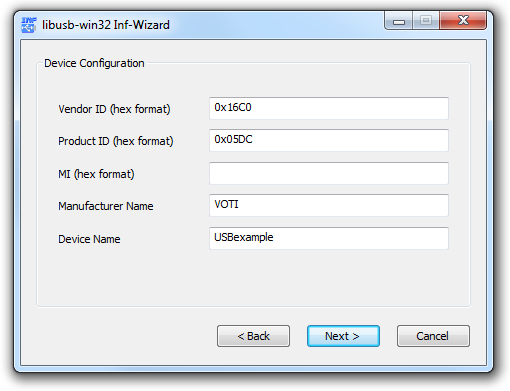
After clicking Next, you get to save your generated driver to a folder. It’s a good idea to use “Install now…” to avoid installing the drivers manually. My installation hanged 50 % of the time (needed to wait 5 minutes for the installer to exit), but the driver still seemed to install OK.
Command-line client
Congratulations! We are almost there! Now we only need to prepare the host-side software. For compiling it, I recommend the GNU C compiler gcc from MinGW project and the MSYS tools that you should be able to install along with it, but probably Visual C and others work just fine. MinGW installer is really hard to locate (big thumbs down for the wiki authors on usability), but currently trial and error should eventually get you here.
We already installed libusb-win32 in the previous section, and the needed library and header files are all there. Just copy (or rename) the oddly named lusb0_usb.h to usb.h in the libusb/include folder and we’re good to go.
First thing we’ll need to do is to have a little helper function to decipher USB descriptor strings used for vendor name and device name. For this and also later for communicating with our device, we will use usb_control_msg() function provided by libusb. You basically pass the device handle, direction of message (USB_ENDPOINT_IN for device to host and USB_ENDPOINT_OUT for host to device) and other information used to define the recipient and direction, and the control message request, index and value codes, as well as a buffer for input/output, buffer size and maximum timeout for the call.
For those who want to understand the control messages better, I warmly recommend the surprisingly user-friendly USB 2.0 specification. The part on control messages starts on page 248 and the first table concerning this should be Table 9-2. You can find the download link for the spec from part 1 of this tutorial. The specification is rather simple and defined constant values closely reflect the #defines in libusb so you should understand everything rather well just by comparing the spec and my example code.
If you wonder what the rest of our helper function does after calling usb_control_msg, it’s basically checking the return value and response length, and converting it from UTF16-LE to Latin1 (same as ASCII if there’s no special characters). The USB descriptor return format is strictly defined to remove any possibilities for interpretation. This is all explained in chapter 9.5 of the USB specification. So here’s the helper function (it’s basically a slightly revised version of the one used in V-USB PowerSwitch example):
/* Used to get descriptor strings for device identification */
static int usbGetDescriptorString(usb_dev_handle *dev, int index, int langid,
char *buf, int buflen) {
char buffer[256];
int rval, i;
// make standard request GET_DESCRIPTOR, type string and given index
// (e.g. dev->iProduct)
rval = usb_control_msg(dev,
USB_TYPE_STANDARD | USB_RECIP_DEVICE | USB_ENDPOINT_IN,
USB_REQ_GET_DESCRIPTOR, (USB_DT_STRING << 8) + index, langid,
buffer, sizeof(buffer), 1000);
if(rval < 0) // error
return rval;
// rval should be bytes read, but buffer[0] contains the actual response size
if((unsigned char)buffer[0] < rval)
rval = (unsigned char)buffer[0]; // string is shorter than bytes read
if(buffer[1] != USB_DT_STRING) // second byte is the data type
return 0; // invalid return type
// we're dealing with UTF-16LE here so actual chars is half of rval,
// and index 0 doesn't count
rval /= 2;
/* lossy conversion to ISO Latin1 */
for(i = 1; i < rval && i < buflen; i++) {
if(buffer[2 * i + 1] == 0)
buf[i-1] = buffer[2 * i];
else
buf[i-1] = '?'; /* outside of ISO Latin1 range */
}
buf[i-1] = 0;
return i-1;
}
Now we can use this helper function when we iterate over USB devices to recognize our own device with vendor name “codeandlife.com” and device name “USBexample”. The libusb-win32 API documentation gives us a good starting point in the examples section. I won’t be hand-holding you too much on this function, the basic logic is just to loop through every USB bus and every USB device in them, open a device and ask it’s vendor and device name, return it if it matches or close and proceed to next one if it does not:
static usb_dev_handle * usbOpenDevice(int vendor, char *vendorName,
int product, char *productName) {
struct usb_bus *bus;
struct usb_device *dev;
char devVendor[256], devProduct[256];
usb_dev_handle * handle = NULL;
usb_init();
usb_find_busses();
usb_find_devices();
for(bus=usb_get_busses(); bus; bus=bus->next) {
for(dev=bus->devices; dev; dev=dev->next) {
if(dev->descriptor.idVendor != vendor ||
dev->descriptor.idProduct != product)
continue;
/* we need to open the device in order to query strings */
if(!(handle = usb_open(dev))) {
fprintf(stderr, "Warning: cannot open USB device: %sn",
usb_strerror());
continue;
}
/* get vendor name */
if(usbGetDescriptorString(handle, dev->descriptor.iManufacturer,
0x0409, devVendor, sizeof(devVendor)) < 0) {
fprintf(stderr,
"Warning: cannot query manufacturer for device: %sn",
usb_strerror());
usb_close(handle);
continue;
}
/* get product name */
if(usbGetDescriptorString(handle, dev->descriptor.iProduct,
0x0409, devProduct, sizeof(devVendor)) < 0) {
fprintf(stderr,
"Warning: cannot query product for device: %sn",
usb_strerror());
usb_close(handle);
continue;
}
if(strcmp(devVendor, vendorName) == 0 &&
strcmp(devProduct, productName) == 0)
return handle;
else
usb_close(handle);
}
}
return NULL;
}
Oh and the 0×0409 is the language code for English, this is also found from the USB specification. Note how the vendor and device names need to be fetched using our helper function – the standard device descriptor in dev only tells the parameter values we need to use for usbGetDescriptorString() to get them (fields iManufacturer and iProduct). This is of course understandable as device descriptor is constant length but the vendor and device names have varying length.
Now that we got past all the sillyness of helper functions to scan all USB devices and return their specially formatted descriptor messages in order to get one simple device handle, the rest of the code is very straightforward. Only thing making the USB communication different from standard structure of accessing a file are the calls to usb_control_msg(), otherwise the general structure of open / do stuff / close applies:
int main(int argc, char **argv) {
usb_dev_handle *handle = NULL;
int nBytes = 0;
char buffer[256];
if(argc < 2) {
printf("Usage:\n");
printf("usbtext.exe on\n");
printf("usbtext.exe off\n");
exit(1);
}
handle = usbOpenDevice(0x16C0, "codeandlife.com", 0x05DC, "USBexample");
if(handle == NULL) {
fprintf(stderr, "Could not find USB device!n");
exit(1);
}
if(strcmp(argv[1], "on") == 0) {
nBytes = usb_control_msg(handle,
USB_TYPE_VENDOR | USB_RECIP_DEVICE | USB_ENDPOINT_IN,
USB_LED_ON, 0, 0, (char *)buffer, sizeof(buffer), 5000);
} else if(strcmp(argv[1], "off") == 0) {
nBytes = usb_control_msg(handle,
USB_TYPE_VENDOR | USB_RECIP_DEVICE | USB_ENDPOINT_IN,
USB_LED_OFF, 0, 0, (char *)buffer, sizeof(buffer), 5000);
}
if(nBytes < 0)
fprintf(stderr, "USB error: %sn", usb_strerror());
usb_close(handle);
return 0;
}
Note that the second parameter for usb_control_msg now uses USB_TYPE_VENDOR to indicate we are sending a vendor-specific control message. You can also see that the request, value and index parameters (here USB_LED_ON/OFF, 0, 0) can be freely used to communicate with our code on device side.
Now save the complete code with some additional includes and two #defines that match the ones in main.c and save it as usbtest.c and compile with make usbtest.exe (actually just “make” suffices, as usbtest.exe is one of the default targets). Now you should be able to turn the LED on and off using commands “usbtest on” and “usbtest off”.
Wow! That is all. I think this is enough for anyone to grasp in a single reading, so I will be splitting additional V-USB tricks into a fourth part of this tutorial that I will write later. Spending 5 hours in one setting to write this one is enough. :)


Posted by
Tagged with:
AVR ATtiny USB Tutorial Part 2

John L:
July 27, 2012 at 21:33
Hmm. I managed to flash the AT2313, but all I get is;
Jul 27 19:31:14 nas kernel: [267165.240854] usb 2-1.4: new full speed USB device using ehci_hcd and address 123
Jul 27 19:31:14 nas kernel: [267165.669169] usb 2-1.4: new full speed USB device using ehci_hcd and address 124
Jul 27 19:31:15 nas kernel: [267166.097377] usb 2-1.4: new full speed USB device using ehci_hcd and address 125
Jul 27 19:31:15 nas kernel: [267166.577520] usb 2-1.4: new full speed USB device using ehci_hcd and address 126
I’ve modified the code to flash an LED in the main loop, so it’s running fine. It’s just not being picked up as a USB device. I suspect I may have a problem because I am using an Arduino Uno to flash the ATTiny2313. I supply the ATTiny with 5V to flash it, then switch the PSU to regulated 3.3V to try talk USB. Anyone got any ideas what might be going wrong ?
John
John L says:
July 30, 2012 at 0:34
Heh. Turns out using a 5V Arduino to try program the AtTiny while trying to read 3.3V USB data leaves you in a world of pain. I used a Fio as an ISP instead, works fine. Joy! Great tutorial!
jokkebk says:
July 30, 2012 at 0:45
:) Nice to hear you got it figured out! It also might’ve worked if you completely disconnect USB and 3.3V PSU while programming, and power the chip from Arduino instead.
I’ve had same types of issues when using the ISP pins for SPI communications, it disrupts the programming process…
GeriBoss:
July 31, 2012 at 22:58
Hi, thanks a LOT for this tutorial, I learned VUSB entirely from here. By the way, it took me 12 hours to figure out that usbInit(); was missing from my project.
Take care :)
jokkebk says:
August 1, 2012 at 1:10
Haha. Thanks, glad to hear that it was of use!
Akshit Maurya:
August 2, 2012 at 17:30
Sir,shouldn’t we be using USB_ENDPOINT_OUT instead of USB_ENDPOINT_IN in our command line client code :
if(strcmp(argv[1], “on”) == 0) {
nBytes = usb_control_msg(handle,
USB_TYPE_VENDOR | USB_RECIP_DEVICE | USB_ENDPOINT_IN,
USB_LED_ON, 0, 0, (char *)buffer, sizeof(buffer), 5000);
} else if(strcmp(argv[1], “off”) == 0) {
nBytes = usb_control_msg(handle,
USB_TYPE_VENDOR | USB_RECIP_DEVICE | USB_ENDPOINT_IN,
USB_LED_OFF, 0, 0, (char *)buffer, sizeof(buffer), 5000);
}
since we are sending descriptors from PC(host) to the device(our MCU board) as USB specification says??
Akshit Maurya says:
August 2, 2012 at 17:43
oh!! got it we are not sending data here!!i’m such a fool to ask that question!!!
jokkebk says:
August 2, 2012 at 22:53
No, it’s just very confusing with the naming system, and the fact that instead of receiving data, the USB device is “sending zero bytes of data” :D
declan:
August 7, 2012 at 11:12
HI, I’m trying to compile the code using AVR Studio 4 and there’s a lot of error…
one of it was: ../USB.c:8:1: warning: “F_CPU” redefined, when I disabled ‘#define F_CPU 12000000L’ it disapeared.
after I added #include usbdrv.c , it still one error left: C:\AVR-Studio\USB\default/../usbdrv.c:537: undefined reference to `usbCrc16Append’ although it was defined in usbdrv.h
Can someone please help me to figure it out?
jokkebk says:
August 7, 2012 at 12:31
It may be that F_CPU is defined on command-line with AVR Studio, so removing the #define from code is OK.
However, you should never include .c files. Instead, add them to your project as new source files. You should also add usbdrvasm.S to your project.
declan says:
August 8, 2012 at 4:49
Hi jokkebk!
Two Thumbs Up for your quick reply!
Thanks a lot… it all works now…
Very Good Tutorial for newbie like me :)
Waiting for next tutorial d_(^^’,)_b
Treehouse Projects:
September 3, 2012 at 16:19
This has been great so far! Thanks! I just can’t seem to get past a certain point, and would appreciate your help. When I try “usbtest on” or off, I keep getting “Could not find USB device!”. Any advice?
Thanks!
Treehouse Projects says:
September 3, 2012 at 16:21
BTW, I changed the device name and vendor name in usbtest.c to the appropriate ones (which I defined in the INF file). So that one line in usbtest.c now reads
handle = usbOpenDevice(0x16C0, “Treehouse”, 0x05DC, “USB Test”);
jokkebk says:
September 3, 2012 at 16:32
Did you also change those values in usbconfig.h (vendor and device name, also lengths need to be changed)?
There are two categories of problems that could cause your error: Either the device is not recognized at all (you should hear Windows “plim” sound when you plug it in), or then there’s some problem with the usbOpenDevice parameters.
For the latter problem, you can add simple printout commands to the “search loop” in usbOpenDevice to print out all the devices, and see if your device is present, but just doesn’t match the expected vendor/device codes/names. For the former, there are a lot of HW issues that have been covered in previous comments.
Treehouse Projects says:
September 3, 2012 at 16:54
Rock on dude! Thanks for that awesome and super fast reply! I didn’t have the correct values in usbconfig.h. Perfect, now I have everything working.
The real challenge now begins: to understand everything, and make this do something creative and useful.
Thanks again. BTW, I read your interview, and found it very inspiring. Keep up the great work!
jokkebk says:
September 3, 2012 at 17:39
Great to hear that you got it working!
Hope you’ll think up a nice project. I think interfacing anything between PC and something a MCU does well is fun. A couple ideas I’ve been tossing around myself:
Wii nunchuck to USB mouse “adapter”
UART to USB keyboard “bridge”
alamalam:
September 14, 2012 at 2:58
VERY GOOD TUTORIAL!! IT work very well!!!
I’M do it on **** AVRstudio 5.1 and Visual C++ 2010 ******
DETAIL:
[details edited out by jokkebk, as it was very long and WordPress had already lost parts of code copied]
alamalam says:
September 14, 2012 at 3:10
////////////////////////////////////////////////////
WHEN I build , it display : 1 error, 0 warning
# error “USB_CFG_CLOCK_KHZ is not one of the supported non-crc-rates!”
I’check program very carefully , MY F_CPU=12000000 and very correctly?!!!
but it still display error?????
I SOLVE PROBLEM follow way:
/******* CODE IN… usbdrvasm.S ********/
…
# elif USB_CFG_CLOCK_KHZ == 20000
# include “usbdrvasm20.inc”
# else
# include “usbdrvasm12.inc” /*error “USB_CFG_CLOCK_KHZ is not one of the supported non-crc-rates!” */
# endif
#endif /* USB_CFG_CHECK_CRC */
Very happy ! it don’t display error any more!
so problem has been solved!
/////////////////////////////////////////////////
VISUAL C++ 2010 ( Thanks to erko!)
////////////////////////////////////////////////////
Path of project: C:\Documents and Settings\Administrator\My Documents\Visual Studio 2010\Projects\usbtest\usbtest
project folder : usbtest
subfolder : usbtest
Copy \libusb-win32-bin-1.2.4.0\lib\MSVC\libusb.lib
to project subfolder “usbtest” (rename “libusb.lib” to “usb.lib”, i think don’t need ,but i do it)
Copy \libusb-win32-bin-1.2.4.0\include\usb.h
to project subfolder “usbtest”
Select New -> Project -> Win32 Console Application
name: usbtest
jokkebk says:
October 1, 2012 at 22:42
Great to hear you got it working!
I removed the parts of code you got working, as the code pasted was quite long and I _think_ the Visual Studio details are already in the comments of this part or other parts of the tutorial. Sorry for that! However, I left your modification to fix the 20 MHz clock frequency setting, thanks for that!
alamalam says:
September 14, 2012 at 3:16
…….
for(i = 0; i<250; i++) { // wait 500 ms
wdt_reset(); // keep the watchdog happy
_delay_ms(2);
}
usbDeviceConnect();
sei(); // Enable interrupts after re-enumeration
while(1) {
wdt_reset(); // keep the watchdog happy
usbPoll();
}
return 0;
}
////////////////////////////////////////////////////
WHEN I build , it display : 1 error, 0 warning
# error "USB_CFG_CLOCK_KHZ is not one of the supported non-crc-rates!"
…….
pradeep kumar:
September 22, 2012 at 15:20
I have gone through your tutorial.it is very much helpful.i have one problem that i could not generate hex file with your makefile i have changed the path in the make file but i cant. i am using avrstudio5
alamalam says:
September 22, 2012 at 21:53
resume your folder project is:
C:\Documents and Settings\Administrator\My Documents\AVRStudio 5.1\AVRGCC1\AVRGCC1
so your HEX file lay in “Debug” folder follow the path:
C:\Documents and Settings\Administrator\My Documents\AVRStudio 5.1\AVRGCC1\AVRGCC1\Debug
I work on AVRSTUDIO 5, WINDOW SP. For me it like it!
Mohit:
September 30, 2012 at 1:59
Hey nice Tutorial
But I am Building ur code in MacOs X and not able to compile usbtest.c using libUSB has u mentioned Please help I am stuck now!!!!
jokkebk says:
October 1, 2012 at 21:50
Unfortunately I don’t have a OS X dev machine available and cannot help you with that. I’m not sure if libusb I included works with Mac OS, you might want to google around or ask some forums. Here’s one Stack Overflow article I found when searching:
http://stackoverflow.com/questions/3853634/how-to-set-up-libusb-on-mac-os-x
jim:
October 7, 2012 at 17:16
Sir..after a lot of struggle i was able to compile the code in AVRstudio 4.
now i get the project.hex to be 16 KB
(source files that i added were-main.c usbdrv.c,odddebug.c and usbdrvasm.c)
Please tell me how to run make so as to get the main.hex file within 2 kB size.please sir.
jim:
October 7, 2012 at 23:28
I figured out to Make the Main.Hex file…but the size of that dot hex file is 16KB..but the maximum flash memory in ATtiny 2313 is 2 KB..so what should be done to burn this hex file into the controller,or else is it something like while burning the hex file it gets compressed and comes within 2 KB??
jokkebk says:
October 8, 2012 at 8:52
The .hex file is ASCII, and the actual size when flashed to MCU (in binary) will be smaller. There’s a utility to check how big it actually is, but I don’t recall the correct incantations (googling “avr check hex size” or something like that will probably give that info).
If you’re using the Makefile I provided, the .hex should fit into space of the MCU used in the tutorial. You can just try flashing it and see if it works. If you’ve made changes, it could be that 2k is no longer enough – I recall some of the later things I’ve done needed more than 2k, so I needed to use ATmega88 for those projects.
Also, adding -OS to compiler flags to optimize everything for size is a good idea, -O2 and other speed optimizations result in many cases in larger binary.
jim says:
October 8, 2012 at 13:19
Thanks a lot..:)…by the way would u be kind enough to give us a tutorial on command line-client programming in Visual C and also about how to compile using mingw..as am a newbie learning AVR on my own..its very difficult for me to pursue based on the hints that u had mentioned here..A tutorial on Command line programming part in VC and compiling using mingw would be appreciated..:)..Thanks a ton once again for this awesome tutorial..:)
jokkebk says:
October 8, 2012 at 13:46
I don’t know anything about VC command line capabilities, but you’re right, it might be useful to write at least a short post about command-line compiling. You can learn a bit just by looking what commands are run when you run “make” (it shows the commands as well as output), but I don’t know if there are any beginner tutorials on the topic.
I myself learned that stuff about 15 years ago on DOS so I’ve completely forgotten about the learning curve associated with command line. :)
jim says:
October 8, 2012 at 17:15
I am getting this “new device is not recognized” notification again and again…even after trying out all the trail and error methods like plugging the usb in different ports even in different hubs as u mentioned here..still then am getting the same error message….is there a way to solve this.???..what would have gone wrong??..please suggest me..:)..Thankyou
jokkebk says:
October 9, 2012 at 23:22
Hmm, “device not recognized” has usually been either a configuration problem (wrong settings in usbconfig.h), or indication of some electronic issue – too heavy zeners, solder problem, wrong connection or resistor value. If you’re using my code directly, and installed the drivers, I’d wager some kind of HW problem, but it’s hard to say as the USB error messages in Windows are generally of very little help.
Anish:
October 11, 2012 at 10:52
hi
I’m trying to program my atmega8 to communicate with the pc via usb
i am currently done with the hardware requirements but while compiling the main.c in linux i’m getting the following error.
“make: *** No rule to make target `usbdrv/usbconfig.h’, needed by `usbdrv/usbdrv.o’. Stop.”
could you please tell me what is going wrong?
jokkebk says:
October 11, 2012 at 11:08
Make gives that error if there are missing files. The easiest way is to grab the full project zip from Part 4 and use that, so you’ll get all the files.
Props for using make instead of trying with AVR Studio and then being the Nth person here to ask why #include <usbdrv/usbdrv.c> does not work! :D
Denis:
October 11, 2012 at 22:47
Hi, I have problems compiling it using provided make file. Compiler says: “process_begin: CreateProcess(NULL, gcc -I ./libusb/include -L ./libusb/lib/gcc -O -Wall usbtest.c -o usbtest.exe -lusb, …) failed.
make (e=2): The system cannot find the file specified.
make: *** [usbtest.exe] Error 2″
Would you be able to help me with that?
jokkebk says:
October 30, 2012 at 23:49
Sounds like you have some files missing, or maybe are running stuff in wrong directory. Goes “gcc” command work from command-line? Do you have libusb subdir and usbtest.c files available? I could imagine such an error for example if you don’t have MinGW (PC version of gcc, not the AVR version) installed.
Harry:
October 18, 2012 at 5:50
This is really a great tutorial, but i can’t finish part3…
When i use INF and choose “Install now”, it say “Resource already exists” but the device still cant work.
Can you give me some suggestions?
Thanks a lot><
Carmine:
October 29, 2012 at 12:28
This tutorial is so great that it enabled me to create an 8/16 bit UV-EPROM programmer with just basic C programming skills, some AVR I/O knowledge and no idea about the USB protocol. Actually it’s the first project I’ve ever done with a microcontroller.
The thing works flawlessly, but there’s a thing I’m not sure about. To program a location in the EPROM, the device must generate 100us programming pulses and I use _delay_us(100) to time the pulses. But there are interrupts occurring all the time, so I think the delays are being extended by an unkown amount. What can I do to get a precise 100us delay? Can I disable the interrupts before and re-enable them after calling the delay function?
Thanks for your time.
jokkebk says:
October 29, 2012 at 13:06
Have you considered using interrupts for the 100 us delays instead? As you said, interrupts get priority over normal code, and using a timer to generate an interrupt every 100 us would be rather easy.
Disabling interrupts for 100 us at time may not be a good idea (might work of course) – if your code takes 0.1 us time to do it’s work, you’ll essentially block interrupts for 99.9 % of the time – not good!
SAYED says:
November 9, 2012 at 14:32
I have a modified code without the other files(http://people.ece.cornell.edu/land/courses/ece4760/FinalProjects/s2010/ssc88_egl27/source/usb_main.c), I download the rest files from your USB tutorial..I change the usbconfig.h ( #define USB_CFG_IOPORTNAME D#define USB_CFG_DMINUS_BIT 4#define USB_CFG_DPLUS_BIT 2#define USB_CFG_CLOCK_KHZ 12000 )and also I change the lengthe(USB_CFG_HID_REPORT_DESCRIPTOR_LENGTH 95)
the I get is “device not recognized”
What should I change to solve this problem?
jokkebk says:
November 9, 2012 at 16:15
Note that by default the D+ line needs to be connected to the pin that has INT0 in it, otherwise it will not work without additional configuration (see V-USB documentation if you want to find out details). Also, if you change descriptor length, be sure that you have also changed the descriptor itself. Otherwise, I cannot help you much – one way to debug it is to replicate the tutorial exactly first, then start changing things one by one, and see at which point it stops working.
In any case, “device not recognized” is already better than nothing at all – I think it means the electrical characteristics of D+ and D- lines are about OK, so pullup is correct etc. Not 100 % sure of course, ever.
SAYED says:
November 9, 2012 at 20:04
I’m very happy for your replay(^_^) and hope you can help me ,,,
I change the D+ line to connect with PD4 which is INT0 and the D- to connect with PD2 ,These configration for ATmega16..
And I change the lenght to be same with the that code.
My problem is that I can’t get 3.3v for data lines and can not adjust it, I connect variable resister to play with the voltage but the voltage was not changed..
I Use resistors, zener diodes to convert 5V logic to 3.3V which is the v-usb connection..
I’m stuck now and don’t have much time because the submit deadline for the projects is very close
So please can I contact you by email so I can send you my circuit ..My Email is (s.mohd.s@hotmail.com)
SAYED:
November 9, 2012 at 11:43
Hi every one..
This is really a great and nice tutorial..thanks
I need help in some general questions..
1) Is the VENDOR_ID important when I want to devlope the V-USB Code.If yes,how can I get It?
2)Is that ID have an effect to cause an error “device not recognized”?
jokkebk says:
November 9, 2012 at 15:08
1) VENDOR_ID and DEVICE_ID identify the device and Windows uses them also to find drivers for the device. If you only use your device by yourself, only thing you need to take care of is that you don’t have several devices connected to your PC with identical vendor/device ID which would need different drivers. There’s also a serial number, you can read more about all of this in V-USB documentation and USB spec.
If you want to develop a device and give/sell it to other users, you’ll need at least your own device ID. V-USB commercial licenses include your own device ID. Ff I recall correctly. Getting a vendor ID means registering to USB consortium or something and costs several thousands of dollars. If you’re considering that, you probably want to ask more somewhere else. ;)
2) Almost everything can cause the mentioned error: Bad solder joints, bad parts, wrong connections, invalid firmware, wrong fuse settings. I cannot help you much there, but I suggest you to read previous comments, I’ve had about 20-30 questions already here and other parts of this tutorial, as well as the USB password generator, those earlier questions might prove useful and contain possible answers.
Neal:
November 29, 2012 at 2:18
I am using the ATMEL Studio 6.0 IDE. When I try and compile things it insists that I change any “PROGMEM char” to “PROGMEM const” in usbdrv.h (e.g. line 455-const usbDescriptorDevice[]). If I make the changes to const, I get things to compile. However when I program the ATtiny85 and connect to the PC, I get a “device not recognized. I enabled the clock output just to see if things were working, and it does go through the osccal and the clock is at 16.5 MHz.
Do you think the changed from “char” to “const” should cause a problem? Do you have any simple suggestions on how to begin debugging from here? With all the timing related things going on over the USB, I am not sure how to go about debugging.
Thanks for a great tutorial!
Neal
jokkebk says:
December 27, 2012 at 16:57
As noted by the commenter below, that change should make it work (haven’t tried myself on ATMEL Studio 6 though) – const is basically just an unchanging char type. Sounds like a classic USB issue, the problem likely being something in the wiring, components or connector. (usually people figure it out eventually, and the problem seems to be different most of the time)
C Brosseau:
November 29, 2012 at 21:36
I got these errors:
$ make
avr-gcc -Wall -Os -Iusbdrv -mmcu=atmega16 -c usbdrv/usbdrv.c -o usbdrv/usbdrv.o
In file included from usbdrv/usbdrv.c:12:0:
usbdrv/usbdrv.h:455:6: error: variable ‘usbDescriptorDevice’ must be const in order to be put into read-only section by means of ‘__attribute__((progmem))’
usbdrv/usbdrv.h:461:6: error: variable ‘usbDescriptorConfiguration’ must be const in order to be put into read-only section by means of ‘__attribute__((progmem))’
usbdrv/usbdrv.h:467:6: error: variable ‘usbDescriptorHidReport’ must be const in order to be put into read-only section by means of ‘__attribute__((progmem))’
usbdrv/usbdrv.h:473:6: error: variable ‘usbDescriptorString0′ must be const in order to be put into read-only section by means of ‘__attribute__((progmem))’
usbdrv/usbdrv.h:479:5: error: variable ‘usbDescriptorStringVendor’ must be const in order to be put into read-only section by means of ‘__attribute__((progmem))’
usbdrv/usbdrv.h:485:5: error: variable ‘usbDescriptorStringDevice’ must be const in order to be put into read-only section by means of ‘__attribute__((progmem))’
usbdrv/usbdrv.h:491:5: error: variable ‘usbDescriptorStringSerialNumber’ must be const in order to be put into read-only section by means of ‘__attribute__((progmem))’
usbdrv/usbdrv.c:70:14: error: variable ‘usbDescriptorString0′ must be const in order to be put into read-only section by means of ‘__attribute__((progmem))’
usbdrv/usbdrv.c:80:14: error: variable ‘usbDescriptorStringVendor’ must be const in order to be put into read-only section by means of ‘__attribute__((progmem))’
usbdrv/usbdrv.c:89:14: error: variable ‘usbDescriptorStringDevice’ must be const in order to be put into read-only section by means of ‘__attribute__((progmem))’
usbdrv/usbdrv.c:111:14: error: variable ‘usbDescriptorDevice’ must be const in order to be put into read-only section by means of ‘__attribute__((progmem))’
usbdrv/usbdrv.c:142:14: error: variable ‘usbDescriptorConfiguration’ must be const in order to be put into read-only section by means of ‘__attribute__((progmem))’
make: *** [usbdrv/usbdrv.o] Erreur 1
The problem seems due to compiler’s new version. Found solution there http://forums.obdev.at/viewtopic.php?f=8&t=6424
Solution: define variable as ‘const’ everywhere the compiler complains. You’ll have to adjust usbdrv.h and usbdrv.c files.
bhorst says:
December 29, 2012 at 15:50
thanks…my problem too. it compiles now. no errors, but lots of warnings. i’m using avrdude 5.11.1 on (puppy) linux 5.2.
bhorst:
December 30, 2012 at 23:04
I’m using avrdude 5.11.1 (running puppy linux 5.2). Let me state up front I am not
expecting anyone to pour over this issue. If you haven’t the time, trust me, I understand.
http://www.jamesriverstudio.com/vusb/vusb_summary.html
jokkebk says:
April 20, 2013 at 17:13
Sorry for not responding earlier, I did briefly look into your problem when you sent it, but couldn’t think of anything quickly and marked it for later reply… which got a bit delayed. :( Did you manage to find anything of help? Based on your lsusb output it kinda seems the device is recognized on some level, maybe version conflict between avr-gcc and V-USB causes the library not to function properly? You might also try 3V6 zeners instead of 3V3, that is what I’ve usually used.
Also, you might want to check usbconfig.h to see what device ID it’s supposed to show, if that is the same that’s shown in lsusb, otherwise it could just be that half-functioning USB device causes your ISP programmer to reassign itself and show as double..
ravi:
January 27, 2013 at 20:44
This is really a great tutorial, but i can’t finish part3…
When i use INF and choose “Install now”, it say “Resource already exists” but the device still cant work.
Can you give me some suggestions?
Thanks a lot><
ravi:
January 27, 2013 at 21:46
PLeassssssssssseeeeeeeeeeeeee help me out…. :(
actually i am new to avrstudio but some how i managed cover part2 and proceed to part3,here are my problems-
1. what does it mean by project folder,i think its the folder named “default” somewhere in directories made by avrstudio.
2.by so much struggle i was able to compile and build the project, but then I hanged at this para of your tutorial- “Now let’s see if we can get it all to compile. The easiest way is to use my ready-made Makefile which also contains the necessary statements for our PC side command-line client. Put the makefile to your project folder and run make main.hex to see if it works. This way, you also see the actual commands the Makefile is used to run – there is nothing special with V-USB, the main things you need to remember is to have -Iusbdrv in place for the compiler to find the .h files from usbdrv folder, and then just having the three additional object files (usbdrv.o, oddebug.o, usbdrvasm.o) put into the same .elf file along with main.o.” what is this ‘make main.exe’ and where to i paste your ‘makefile’
3.When i use INF and choose “Install now”, it say “Resource already exists” but the device still cant work.
plz help me i don’t have any other resources to solve my problem.plz plz plz i have given my three whole days on it.
jokkebk says:
April 20, 2013 at 14:52
Sorry for a late reply… Regarding driver problem, I believe in most cases the drivers get installed without issue, but there’s some hardware or firmware issue with the device (bad contacts, etc.). You could try one of my USB HID examples (keyboard, password generator, etc.) as they don’t need drivers and are so easier to debug.
There are some instructions regarding the use of AVR Studio (project is just something you can create in studio), but you could also consider installing WinAVR and running “make” on the command line if you have trouble with AVR Studio (“make” is actually a utility that runs all the necessary commands to compile the program for you, so you shouldn’t need much more experience with command line than just using “cd” to get into the correct directory…
Actually, I just might make a short tutorial on command line – that would probably help me to answer those questions.
boumry:
February 10, 2013 at 20:01
Thanks for great tutorial.
I have problem recognising avr device via USB
dmesg:
[ 5403.024398] hub 4-0:1.0: unable to enumerate USB device on port 1
[ 5417.628390] usb 4-1: new low-speed USB device number 91 using ohci_hcd
[ 5417.768166] usb 4-1: device descriptor read/64, error -62
[ 5418.012389] usb 4-1: device descriptor read/64, error -62
[ 5418.252176] usb 4-1: new low-speed USB device number 92 using ohci_hcd
I have used exact files from your tutorial.
I am running:
Linux 3.2.0-20-generic #33-Ubuntu
Thanks all for help
jokkebk says:
April 20, 2013 at 14:53
Sorry, not much I can do to help, as I haven’t tried this on Linux and don’t know if you need some drivers or not there… If you have a Win box you can try if that works better, if not it’s most likely some hardware issue with the project and not Linux-specific.
Niikhawod:
April 20, 2013 at 17:01
i am stuck at the “make flash” command.
when try to run make i get this error:
avrdude -p m328p -c arduino -v -U flash:w:main.hex
process_begin: CreateProcess(NULL, avrdude -p m328p -c arduino -v -U flash:w:mai
n.hex, …) failed.
make (e=2): The system cannot find the file specified.
make: *** [flash] Error 2
jokkebk says:
April 20, 2013 at 17:18
I think it means that you don’t have avrdude installed or its directory in your PATH variable – you should be able to just type “avrdude” into command line and get it to print help about its usage.
Other possibility would be that main.hex is missing for some reason (compilation failed?)
Niikhawod says:
April 24, 2013 at 17:23
it was the PATH variable that wasn’t set.
thank you.
Appsdownload:
April 25, 2013 at 11:01
Hi there! I’m a beginner at microcontroller and i really want to learn about usb communication with my device and pc. But i’m stuck at -Responding to USB control messages. I’m not able to understand what is going on and how pc sends those control messages. Please help me out from that point. thank you
jokkebk says:
April 25, 2013 at 12:32
The PC side example comes later in “Command line client” section – it uses libusb library in main() method to send those messages to the device. V-USB handles the low-level receiving of control messages, and calls our usbFunctionSetup() function, providing the same data that was sent from PC side to the function.
So basically we have helper libraries on both sides – in AVR side V-USB does the heavy lifting for us, and we only need to implement the usbFunctionSetup, and in PC side, libusb handles sending control messages, we can just use usb_control_msg() to send them.
Appsdownload says:
April 28, 2013 at 9:41
thank you very much.now i got the idea about the communication. will you please elaborate the use of make file and the line-”Put the makefile to your project folder and run make main.hex too see if it works.”
smile:
April 30, 2013 at 11:00
Hey.
I got an issue all the time:
fatal error: usbdrv.h: No such file or directory
I’m working with AVR Studio 4 and AVR GCC.
I added folder usbdrv under my project folder:
C:\Documents and Settings\My Documents\Atmel\USB_PART2
there is .aps , .c , .aws file and folder – “default”.
In this “Default” folder i pauted usbdrv folder.
————–
Actualy i even tried it put in C:\Documents and Settings\My Documents\Atmel\USB_PART2 here too, but even then the result is the same.
Any help !?
jokkebk says:
April 30, 2013 at 11:17
In addition to adding .c and .S files described in the tutorial to your project, you need to add usbdrv folder to your include directories. There is likely an option for that somewhere in AVR Studio. I’m doing a short walkthrough on this in the future, too.
Niikhawod:
May 7, 2013 at 12:32
Great tutorials,
i have run in to the problem that when i give the “usbtest on” command the led won’t go on.
i have checked al the settings in the usbtest.c and usbconfig.h and windows “sees” the usb device i made.
is there some way to see if the “on” signal is send to the right device or if it is send at al ?
jokkebk says:
May 7, 2013 at 12:45
Thanks! You could add some print statements to usbtest.c to display the devices it is enumerating, and if it has found the device etc. (so you could determine if it found the right device), so you’ll get an idea how far it goes before it doesn’t work.
Also, on device side you could maybe light the LED when the device first enters the while-loop, so you can be sure everything goes at least to that point as it should.
Niikhawod says:
May 8, 2013 at 0:31
The device itself doesn’t seem te be entering the while loop.
and i am not sure i added the right code to usbtest.c
i added “fprintf(stderr,”%s” ,devVendor);” where it gets its vendor name.
Niikhawod says:
May 8, 2013 at 0:37
never mind, i found what the problem was.
the uptodate main.c file was saved in a different folder by atmel studio then where the makefile was…….
it is working fine now,
thank you for your help.
Roelf:
May 16, 2013 at 16:45
I still don’t get the USB_ENDPOINT_IN, USB_ENDPOINT_OUT. Could you clarify why it feels like we should be using USB_ENDPOINT_OUT as we are sending a control message from host to device, but instead using USB_ENDPOINT_IN which is described as device to host. (PS I get the code to work, just don’t understand the theory)
Roelf says:
May 17, 2013 at 11:42
Figured it out, here is the answers for those that want to know. USB_ENDPOINT_IN and USB_ENDPOINT_OUT refers the data block associated with the control message. IE is the host sending a data block to the device after the control message or is the device sending a data block after the control message.
However, if the length of that data block is 0 the direction bits are ignored.
jokkebk says:
May 17, 2013 at 12:22
Excellent detective work! I was just going to answer yesterday that the scheme is quite confusing, but then realized I forgot the actual details from year ago. Your answer sounds like the correct one.
RS-232 has similar hard-to-figure-out terms RX/TX which are dependent on how you look at the communication. Especially for connectors, is the RX the one where device is receiving, or the computer? Confuses me every time. :D
thehu:
May 19, 2013 at 22:42
Hi, great Tutorial, but i have a problem, maybe you could give me some advise…
For some reason the tutorial worked great (did it last month or so), and today i wanted to build my own small usb device, but i got stuck. Ubuntu didn’t find my device. So i began with your tutorial again (to the point where the Led can be turn on/off), but it is also not working. (Cant find the device). I tried different USB Ports with no luck.
Maybe you had a similar problem?
greetings
PS i checked the usbconfig, and went through the tutorial twice ;)
jokkebk says:
May 20, 2013 at 0:25
Weird. Sounds like something in the hardware has changed (based on number of people who have had problems I’d say it’s finicky at best), I don’t have much more ideas than triple-checking connections and maybe seeing if shorter jump wires or something might work.